Office Mouse
Your Mouse- Polling Rate125 Hz
- Typical CPS3 – 5
- Best ForOffice & browsing
Designed for all-day productivity. Reliable and comfortable but not built for speed or precision gaming.
This free online mouse tester checks that every function of your mouse works correctly — left click, right click, middle click, scroll wheel and cursor movement — all in one place.
Run a quick mouse click test on the left, right and middle (wheel) buttons. Side buttons (Back / Forward), if present, are detected as well.
Complete all 5 mouse tests to unlock your personalized Mouse Performance Report.
Move your cursor over the box below and scroll up and down to test your mouse wheel.
Move your mouse inside the box to trace its path in real time and see live position, speed and movement-update rate.
Getting accurate results from any mouse testing online tool starts with the right setup, not just clicking buttons on the screen. Follow these four quick steps — a flat surface, a proper connection, a full battery, and a clean sensor — before you run the mouse test above. A few seconds of prep here means every click, scroll, and movement you test reflects your mouse's true performance, not a setup issue.
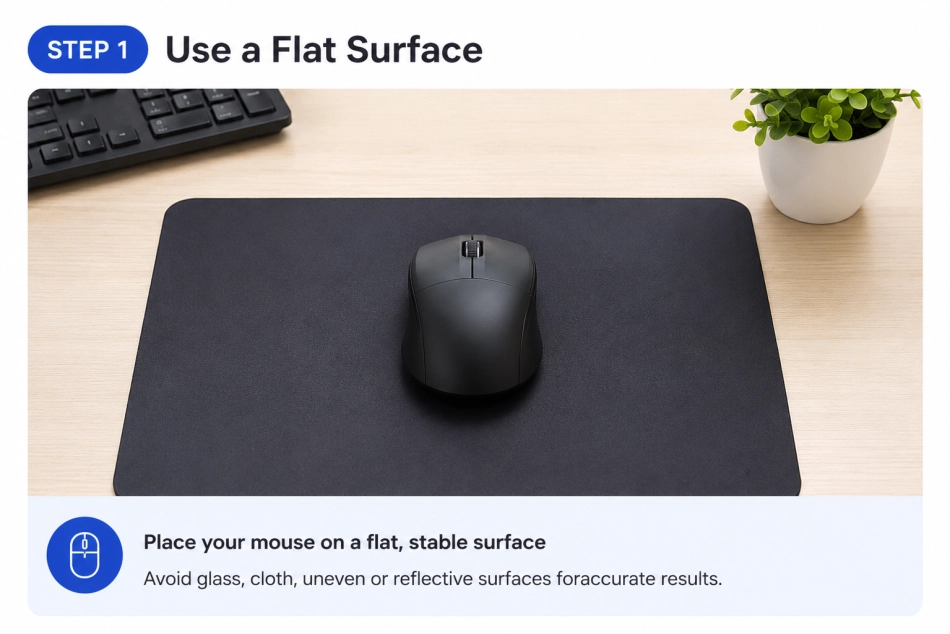
Place your mouse on a flat, even surface like a desk or mouse pad. Uneven or glossy surfaces can make the sensor skip or give inaccurate readings.
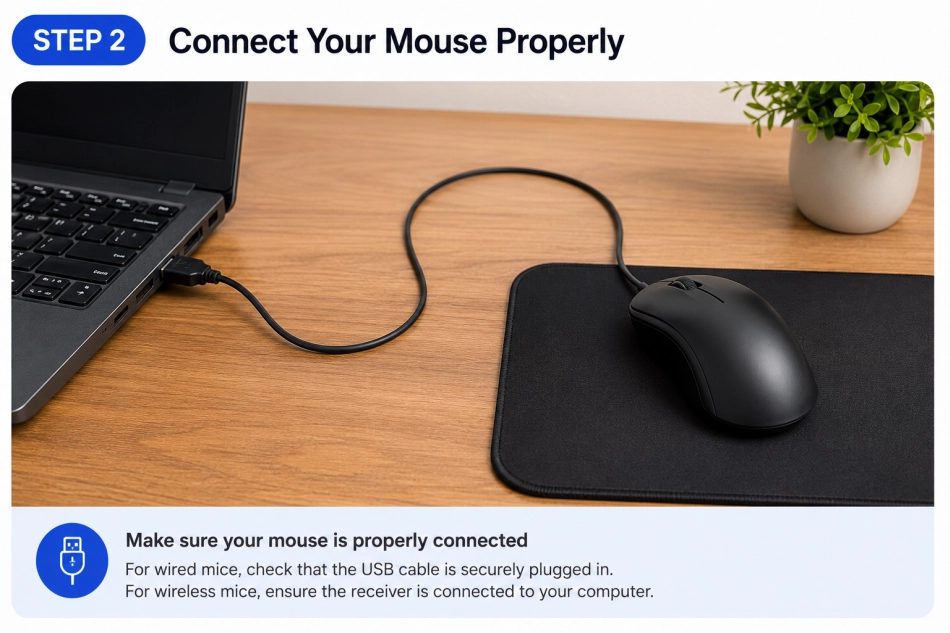
Make sure a wired mouse is plugged firmly into a working USB port, and a wireless one is properly paired via its dongle or Bluetooth before you start testing.
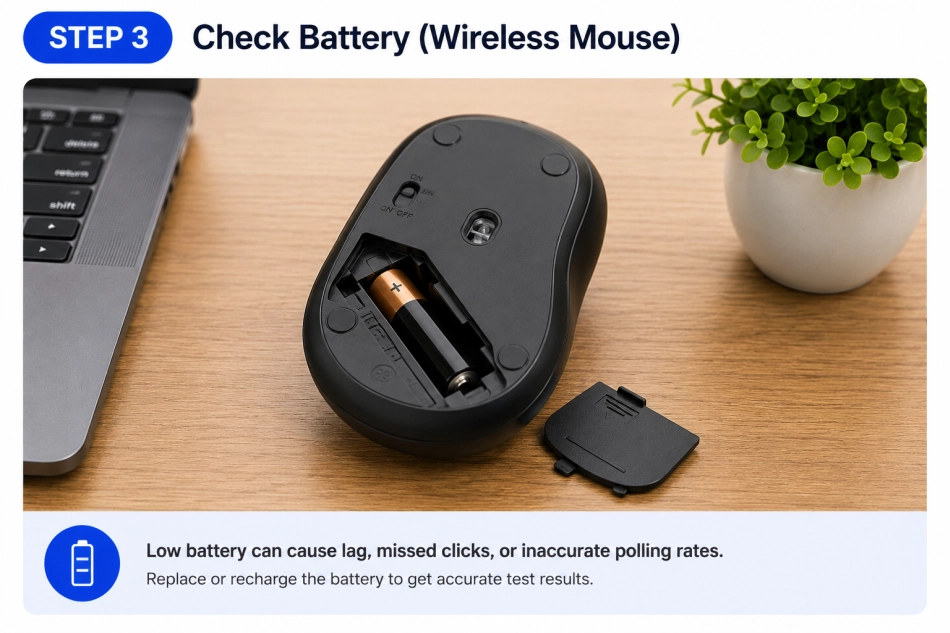
Low battery can cause missed clicks, laggy movement or scroll skips. If you're on a wireless mouse, charge it or swap in fresh batteries before testing.
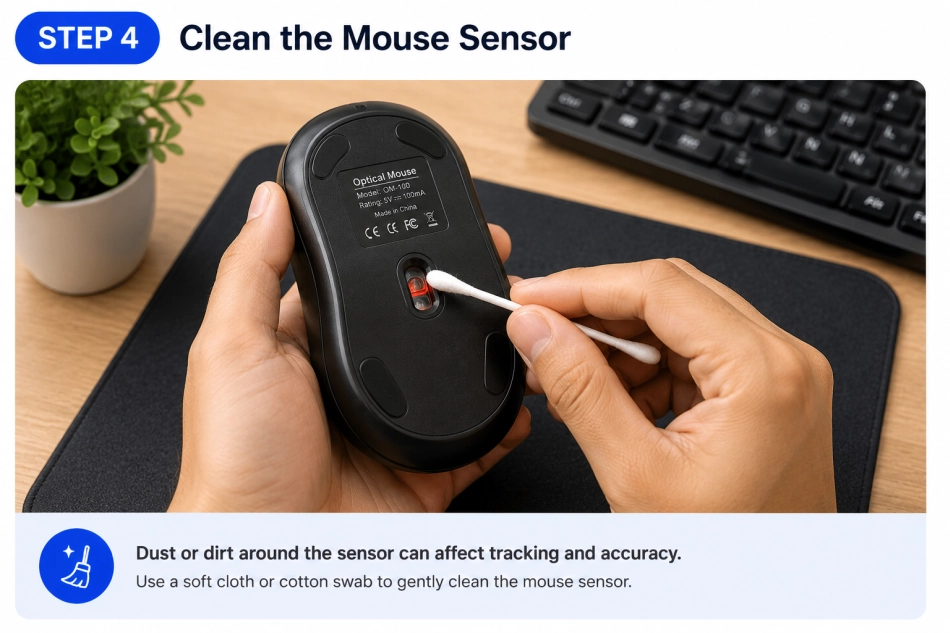
Dust or debris on the optical sensor can throw off tracking. Gently wipe the sensor and the surface underneath so movement stays smooth and accurate.
Tap the left, right and middle buttons on your mouse over the Click Test box above. Each one has its own counter, so a button that isn't registering will stand out fast.
Hover over the scroll box and roll the wheel up and down a few times. Watch the arrows move and the up/down counts climb as you go.
Drag your cursor through the tracker box above. You'll see your live position, speed and how many updates your mouse is sending per second.
No downloads or sign-ins needed. If a click, scroll or movement doesn't show up here, it's probably not registering in your everyday work either.
Everything runs the second the page loads. No app, no extension, no permissions pop-up — just open the tab and start clicking.
Every click, scroll and movement is processed right there in your browser tab. None of it gets sent to a server or saved anywhere, not even by us.
This site started because my own mouse was double-clicking on its own and I couldn't find a plain, ad-free way to check it. Read the story →
No paywalls, no premium tier, no account to create. Bookmark the page and come back anytime you want to check a mouse again.
123mousetest.com is just a page I built to check if a mouse is actually working right. Click the buttons, roll the wheel, move the cursor around — the counters tell you right away if something's stuck or skipping. It works as a mouse button tester too, so a dodgy side button or a double-clicking left click won't slip past unnoticed. Handy when you unbox a new mouse, or when your current one starts acting up and you want to know if it's the mouse or just you. No install, no sign-up, no account — open the page and click away. If you want the backstory on why I made this, it's on the About page.
Usually a worn-out switch inside the left button. Run the Click Test above — if the counter jumps by two on a single press, the switch is failing.
Could be a dirty sensor, a low surface DPI, or a weak USB connection. Try a different port and surface, then check the movement tracker for stutter.
Dust or debris around the wheel is the most common cause. Roll it slowly in the Scroll Test box — missed counts point to a wheel that needs cleaning or replacing.
Swap the USB port or cable first. If it works on another computer but not yours, the issue is likely a driver — reinstall it or check for a firmware update.
Not all mice are built alike. The polling rate, click speed, and hardware quality of your mouse determine how smoothly it responds — whether you're drafting emails or competing in a tournament. Run the tests above and see exactly which tier your mouse falls into.
Designed for all-day productivity. Reliable and comfortable but not built for speed or precision gaming.
A step up from office mice with quicker response. Good for occasional gaming and light creative work.
Built for gaming with high polling rates and low click latency. The go-to for most serious gamers.
Elite hardware with ultra-high polling rates that minimise input lag to near-imperceptible levels for professional play.
| Mouse Type | Polling Rate | Response Time | Best Use Case | Performance |
|---|---|---|---|---|
| Office Mouse | 125 Hz | 8 ms | Productivity & daily work | ★★☆☆☆ |
| Casual Gaming | 250 – 500 Hz | 2 – 4 ms | Light gaming & everyday use | ★★★☆☆ |
| Gaming Mouse | 1000 Hz | 1 ms | Competitive FPS & RTS | ★★★★☆ |
| Esports Mouse | 2000 – 8000 Hz | < 0.5 ms | Pro esports & tournaments | ★★★★★ |
Complete the Mouse Test above to discover which category your mouse belongs to.
A few questions we get asked a lot about testing a mouse online.
This is almost always the micro-switch inside the left button wearing out, not a browser problem. Once a switch gets old, the contacts bounce for a split second and the operating system reads that bounce as a second click. Click the left button here a dozen times in a row — if the counter jumps by two on any single press, it's the switch, and no amount of driver reinstalling will fix it. Cheaper mice tend to show this after a year or two of daily use; some people fix it by opening the mouse and cleaning the switch contacts, but replacing the mouse is usually less hassle.
Plug the mouse into a different USB port, and if you have one handy, a different computer. If the same button skips clicks or the cursor still stutters on another machine, the hardware is at fault. If it behaves normally elsewhere, look at your mouse software (Logitech G Hub, Razer Synapse, etc.) or just try a different port and cable — USB hubs and extension cables are a common source of dropped signals.
The "Update rate" number in the tracker above is how many mousemove events your browser is receiving per second while you're moving the cursor, which is a rough stand-in for your mouse's polling rate. A basic office mouse usually sits around 100–125 Hz, while gaming mice are commonly set to 500 Hz or 1000 Hz. Keep in mind the browser can throttle this slightly compared to what the hardware is actually sending, so treat the number as a ballpark rather than an exact spec.
A few things cause this. Some laptops and basic mice simply don't have a fourth or fifth button, so there's nothing to detect. On mice that do have them, manufacturer software sometimes remaps those buttons to open apps or run macros instead of sending a normal click, in which case the browser never sees them. Check your mouse's configuration app and make sure the side buttons are set to their default "Back" and "Forward" function rather than a custom shortcut.
No. Every test on this page — clicks, scroll counts, movement tracking — runs entirely in JavaScript inside your own browser tab. Nothing is sent to a server, stored in a database, or logged anywhere, and closing or refreshing the page wipes every number back to zero. You can check this yourself by opening your browser's network tab while you use the tests; you won't see any outgoing requests tied to your input.
Yes, mostly. Left click, right click (often a two-finger tap), and scrolling with a two-finger swipe all work fine on a trackpad since they fire the same browser events as a physical mouse. Middle click and the back/forward buttons are hit or miss, though — they depend on how your trackpad driver maps those gestures, and not every laptop supports them at all.